
Insured Excel Upload
The Insured Excel Portfolio upload feature in ClariNet allows you to import Insured information from a spreadsheet into ClariNet, without needing any associated Case information for the Insured. You can create a new Insured from scratch, and it will exist unassociated with any Case.
You can also update existing Insureds in ClariNet, which can be matched using an Insured Reference or Public identifier.
Excel Template
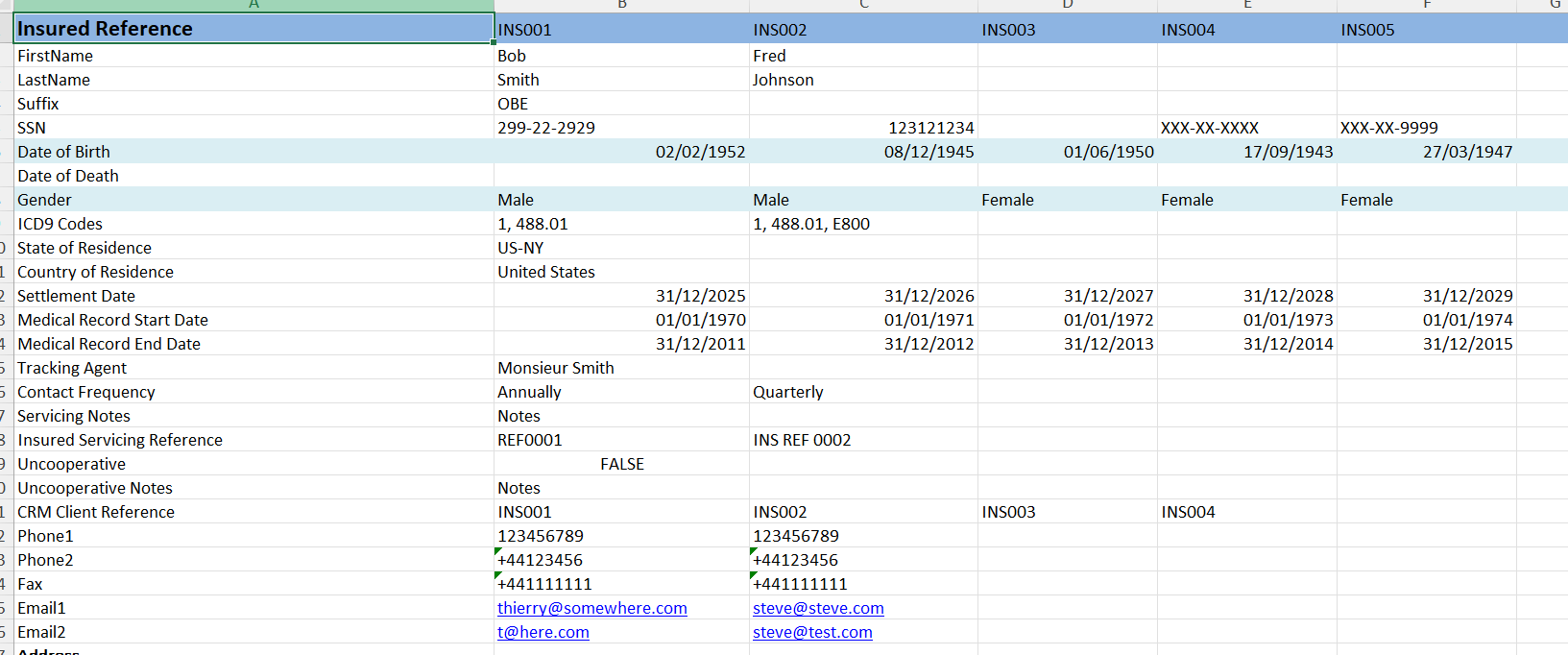
The Insured excel upload template can be found at https://www.clarinetlive.com/user/templates. The insureds are arranged in columns, with the heading of each the Insured Reference. The Insured reference must be supplied if you are matching to existing insureds using Insured Reference, and it must be unique within the context of the excel sheet.
Matching to existing Insureds
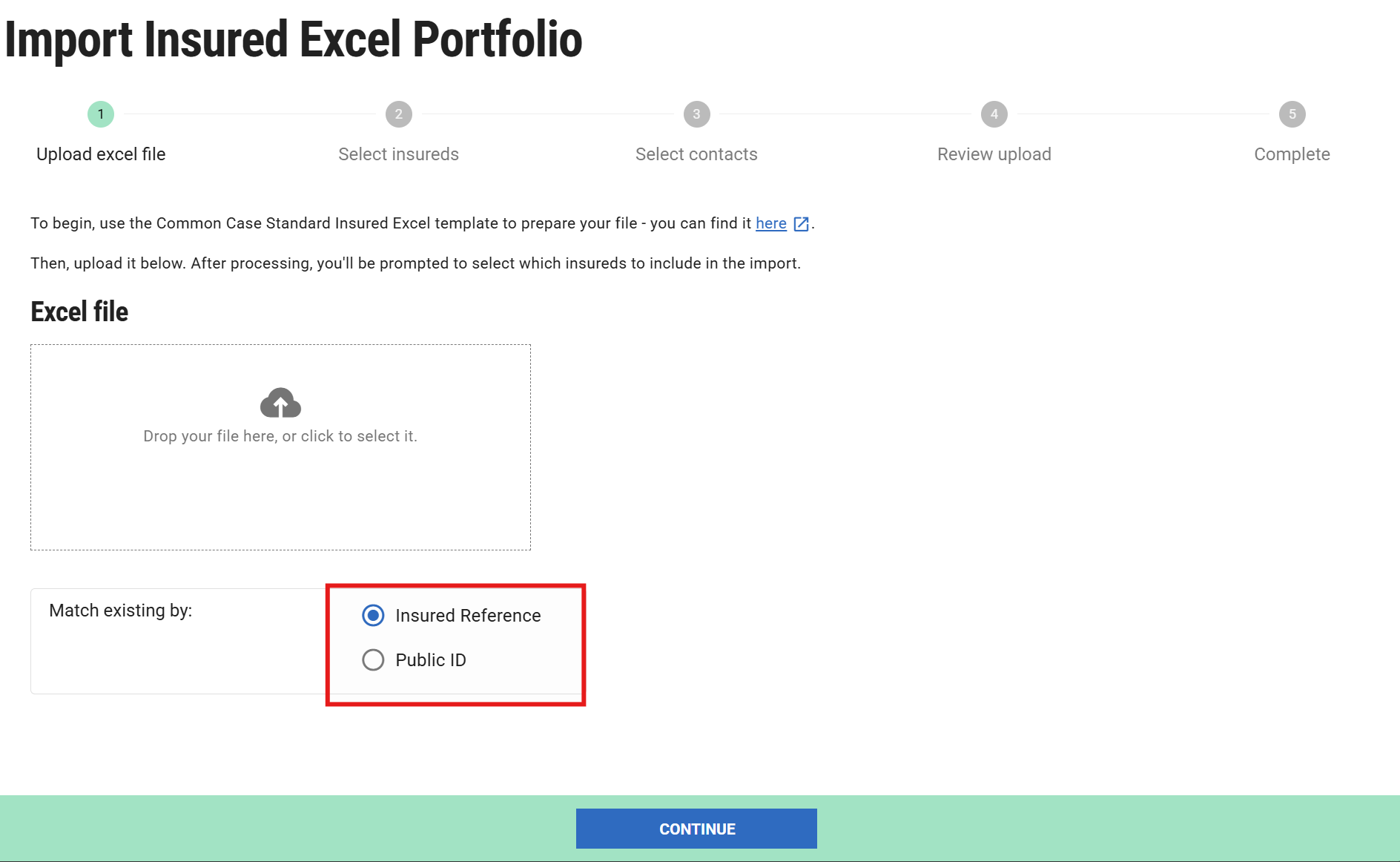
During the import process, you’ll be asked how you want to match your spreadsheet data to existing Insureds in ClariNet. You can choose to match by Insured Reference or by Public ID—whichever works best for your data.
The default is to match by Insured reference. ClariNet does not enforce that Insured Reference is unique - many Insureds could have the same reference. In such a scenario, you can’t match using Insured Reference with the uploader, it will report that the match is ambiguous. You can use Public ID to disambiguate in that case. The public identifier is shown on the Insured details page toward the bottom right, or it is available to automated systems via the public api.
Insured import selection
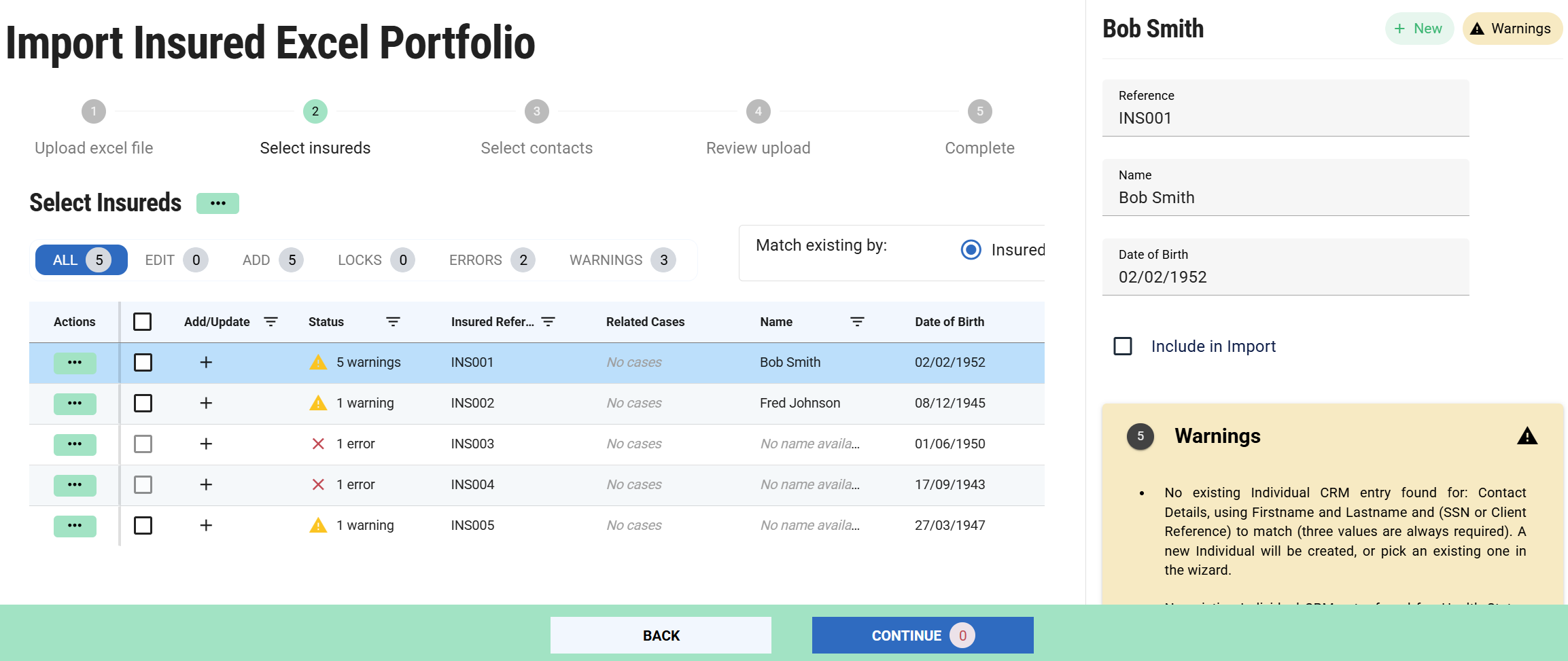
Once you have uploaded a sufficiently valid excel template, you will move to the second step of the import, which will present a list of the Insureds that were found in the Excel file as below. Clicking on a row will expand a slide out from the right hand side which provides additional details.
| Column | Description |
|---|---|
| Actions | This provides a sub menu of actions for each row, such as selecting it for import or forcing lock acquisition if necessary. |
| Add/Update | This column indicates whether the Insured was matched to an existing Insured in ClariNet, or if it will be newly created in the import. A plus indicates it will be newly created. |
| Status | The status of the item. This can either be ok, in which case you can go ahead and select it for import, or there could be warnings or errors. Warnings do not stop you from importing, and generally relate to problems matching up contacts in your spreadsheet with existing CRM entries in ClariNet. These aren’t necessarily problems and can be resolved in later steps. Errors must be resolved before proceeding. The specifics of the error are available in the slide out that you can see by clicking on the row. For example, if the Insured Reference matches to multiple existing Insureds and you’ve selected Insured Reference as a match type, that would be an error. The status column can also show a link “Acquire Locks”. This is shown if the Insured that the item has matched to is locked by another user in your company - because, for example, they are editing it. In that case, you can either wait for them to finish, or go ahead and acquire the lock from them so you can import. |
| Insured Reference | This is the insured reference found in your file, or from an existing insured the item was matched to. |
| Related Cases | If the item was matched to an existing Insured, and that Insured is contained in one or more Cases, those cases will be listed here. |
| Name | The name of the insured, either from your excel spreadsheet or from the Insured the item was matched to. |
| Date of Birth | The date of birth of the insured, either from your excel spreadsheet, or from the Insured the item was matched to. |
Contact selection
After selecting your Insureds, ClariNet will help you sort out any new or unmatched contacts. In the Select Contacts step, you can either link them to existing CRM entries or confirm that you want to create new ones.
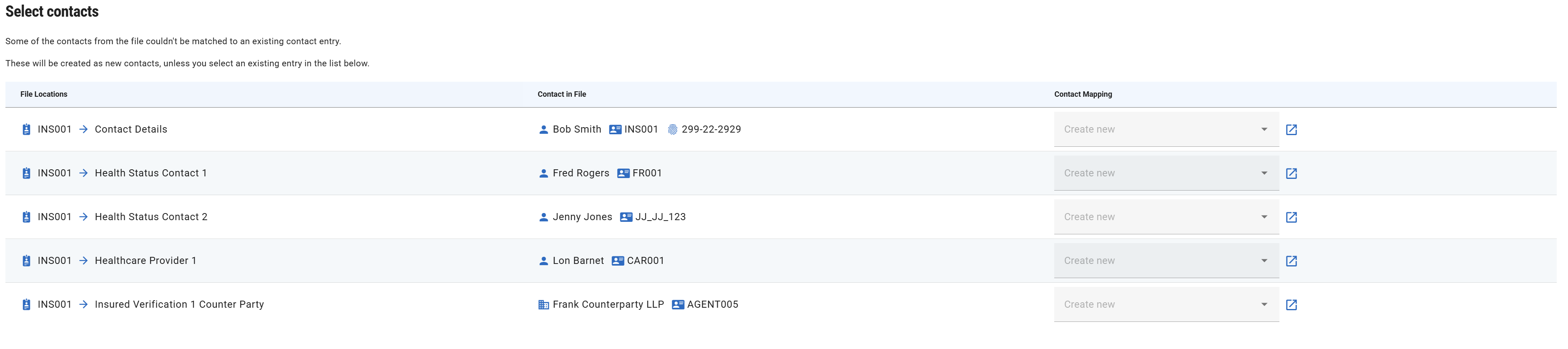
| File Locations | Indicates where abouts in the excel template the contact was found |
|---|---|
| Contact in File | The details from your excel template about the contact - Name, client reference, SSN if available. |
| Contact Mapping | This is a searchable dropdown of existing contacts from ClariNet’s CRM for your company. You can use this to either specify you want a new entry created (by leaving it blank), or select an existing contact to map it to. |
Review & Upload
The review step provides a final opportunity for you to see what actions will be taken before proceeding with the upload. It will simply be a list of the Insureds from the excel file that you’ve selected, and indications of whether they will be created or updated in ClariNet.
If the upload is successful, the completed step shows basically the same list, with links to any cases that the Insureds are associated with.