
Portfolio Mirroring
Overview
Portfolio mirroring is a background process in ClariNet LS that mirrors changes made in a case in one account to a corresponding case in another account. The set up requires a portfolio in the sender account and a matching portfolio in the receiving account. The composition of the portfolios must match exactly.
The set up of portfolio mirroring is undertaken by ClearLife. Once configured, any change to a mirrored data point in the source case(s) will be sent to the case(s) in the receiving account. This process typically happens within 30 minutes.
Datapoints included
A subset of case and insured data points are supported:
- LE Reports
- Only when the Mirroring checkbox is checked on the report
- The checkbox will default to not checked
- Insured Verifications
- Healthcare Providers
- Health Status Contacts
- Insured Contact Details
- Insured
- Date Of Death
- Date Of Birth
- First Name
- Middle Name
- Last Name
- Gender
- Insured Death Tracking
- Insured Name Variations
- Payment History
- Illustrations
- Orders
- Any fax details will not be included
- Policy Verifications
- Premium Schedules
- Grace Notices
- Case Disposal/Maturity
- Documents
- All linked to mirrored cases, policies and insureds
- Linked to entities that are mirrored. For example, LE Report with the Mirroring checkbox ticked will also mirror documents attached to it.
- All Comments (public and private)
In addition, any contact linked to one of the entities will also be mirrored across accounts (including addresses, telephone numbers etc.).
Documents
Documents that are attached to mirrored entities in the sender’s account will be mirrored to the corresponding entity in the recipient’s account. For example, a Life Expectancy Report with the “Mirrored” checkbox ticked will mirror both the LE Report itself and all documents attached to the report.
Adding a new document to an already mirrored data object in the sender’s account will mirror the new document to the corresponding object in the recipient’s account.
Monitoring
The Portfolio Mirroring Log page which you can access via Admin → Portfolio Mirroring Log, shows all the updates you have received from another account via portfolio mirroring:
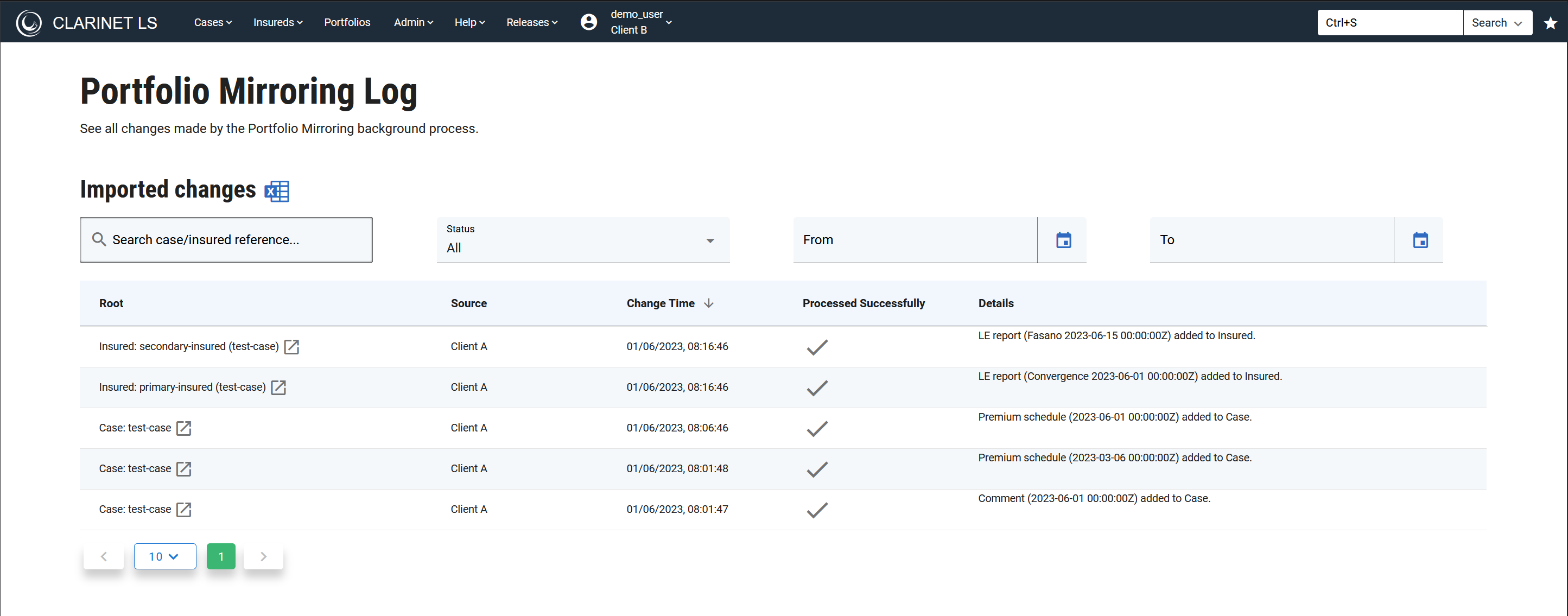
The list of changes can be filtered: to a particular case or insured, by date range, by status, or a combination of them.
The list of changes can be processed offline by downloading the current results view with the excel icon in the “Imported changes” header.
Limitations
In version 1, deletions are not supported. Once a datapoint has been mirrored, it cannot be deleted.
Linking insureds in the mirrored portfolio to other cases not in the portfolio is not advised to keep data that should be mirrored separate from data that shouldn’t.
Onboarding
Existing mirrored Portfolios can be updated with new cases from either side of the relationship. Whether you are the sender or the receiver, you can originate a case and onboard it to the mirrored portfolio, provided the counterparty consents to this.
Consent to onboarding new cases
Before onboarding new cases is enabled, the other side of the mirroring must first allow cases to be onboarded in the portfolio. For example, if you are the recipient, that means that the sender must allow onboarding on their side first.
- Locate the Portfolio: Navigate to the specific mirrored Portfolio you wish to update.
- Access Servicing: Click on the Servicing tab.
- Open Mirroring Settings: Select the Mirroring sub-tab to view the onboarding options.
- Allow onboarding: Use the actions menu to allow the other side to onboard cases
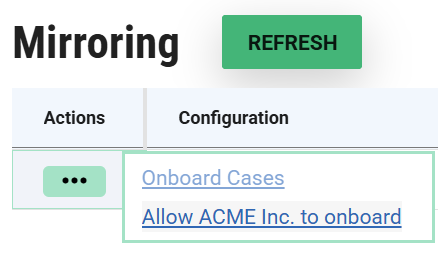
Once this is done, the other side will be allowed to onboard eligible cases into the mirrored portfolio.
Onboarding Prerequisites
Before a case can be successfully onboarded for mirroring, ensure the following mandatory data points are populated. If any of these are missing, the case will not be eligible for transfer:
- Case Reference: A unique identifier for the case. If a duplicate exists on the receiver's side, a suffix will be automatically appended (1, 2, etc.).
- Policy Details:
- Policy Number
- Policy Date
- Carrier: The insurance carrier associated with the policy.
- Insured Information: At least one Insured record must be attached to the case.
How to Add Cases
- Locate the Portfolio: Navigate to the specific mirrored Portfolio you wish to update.
- Access Servicing: Click on the Servicing tab.
- Open Mirroring Settings: Select the Mirroring sub-tab to view the onboarding options.

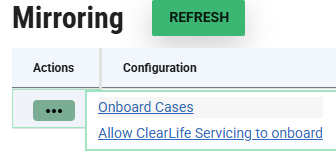
- Initiate Onboarding: Click the Onboard Cases button.
- Select Cases: From the list provided, select one or more cases you wish to add to the mirroring arrangement.
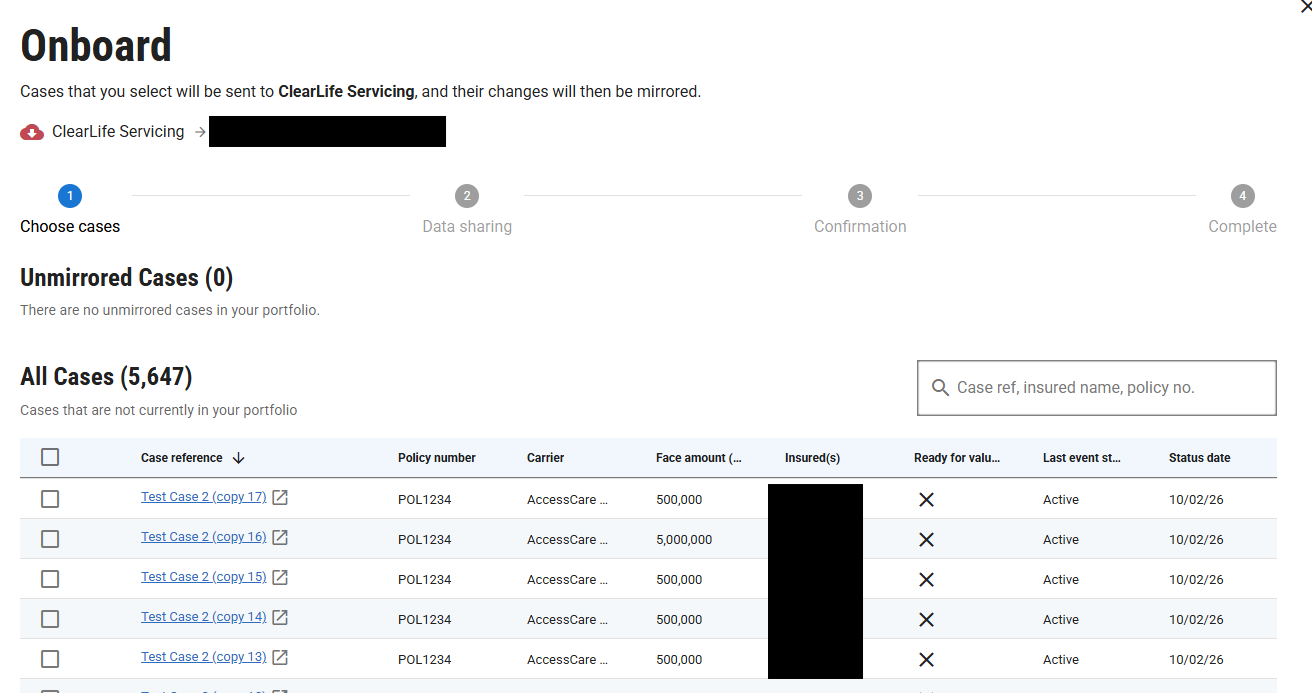
Data Consent: Click Next. You will be asked to consent to the transfer of data.
Important: Onboarding will include all data points and documents that are described in the Data points section.Final Confirmation: Click Onboard Case. This is the final step to initiate the transfer
Monitor Progress: Once the process starts, click Close to return to the Mirroring tab. You will see your selected cases listed along with their synchronization status.

Onboarding Cases via Advanced Search
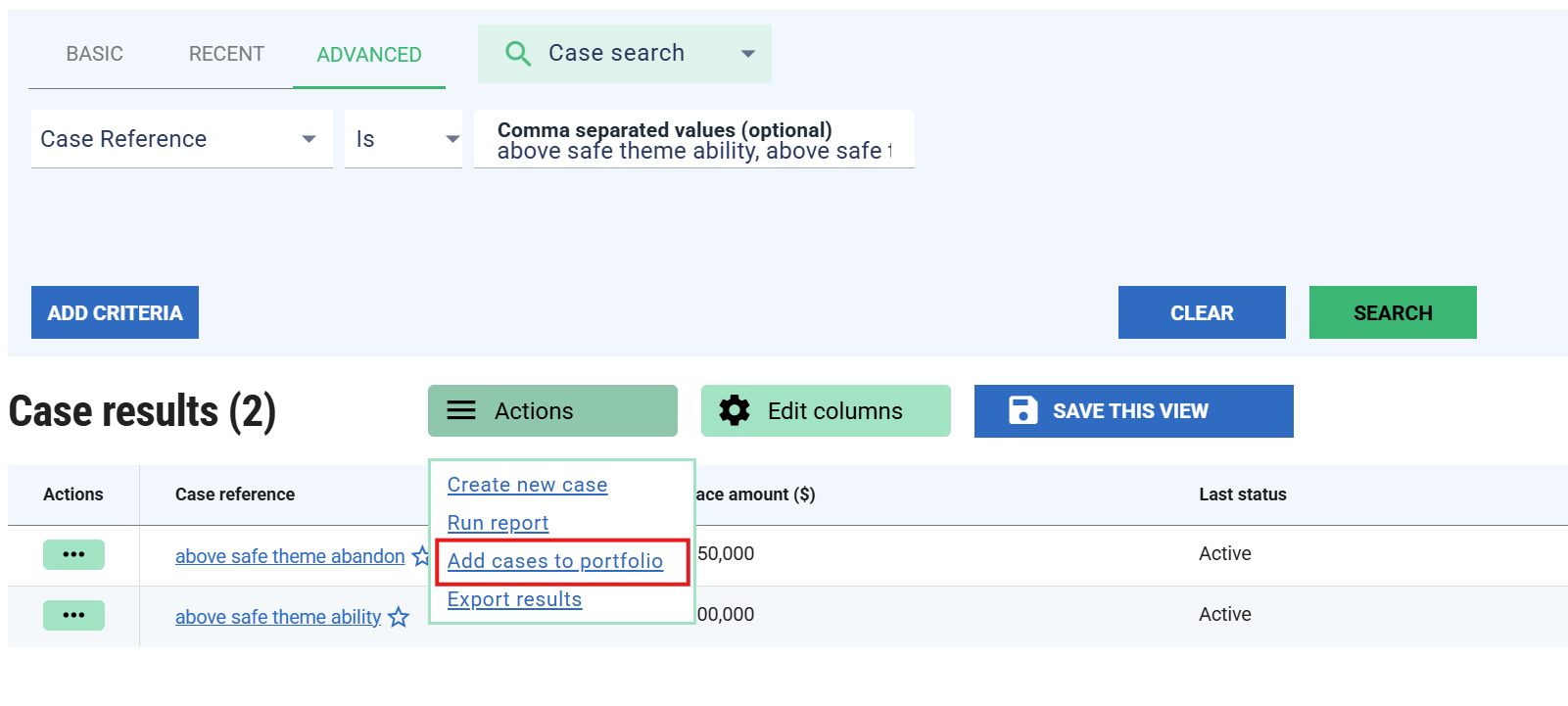
If you have a large number of cases to onboard, searching for them individually can be time-consuming. Instead, you can use ClariNet’s Advanced Search feature to generate your list all at once. You can search using a comma-separated list of case references, or utilize any of the other available search criteria.
Step 1: Add Cases to your Portfolio
- Once your search results load, click the Actions button above the case results grid.
- Select Add cases to portfolio.
- In the Select existing portfolios dropdown, choose the Portfolio you want to onboard from.
Step 2: Onboard the Cases
- Navigate back to the selected Portfolio
- Go to SERVICING → MIRRORING
- Click Onboard Cases from the action menu on the relevant mirroring configuration.
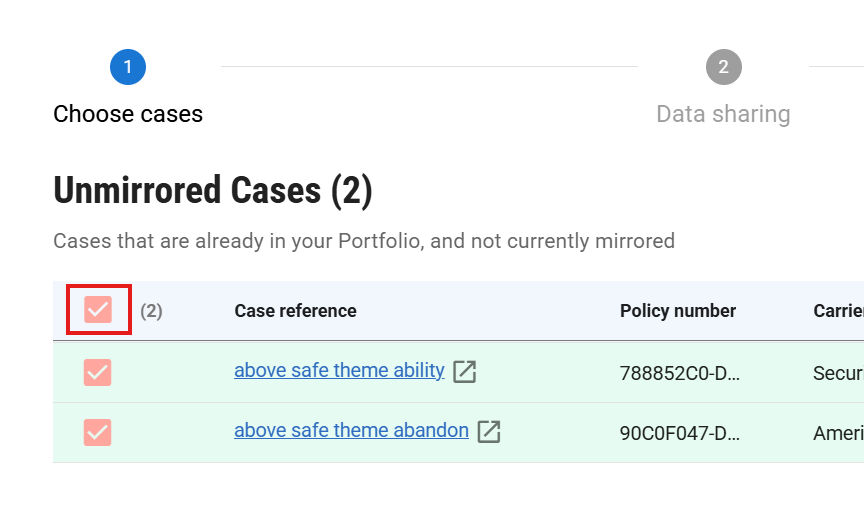
- The cases you added from the search will now appear under Unmirrored Cases
- To onboard them all at once, select the checkbox in the column header as shown below, and proceed.
Understanding the Mirroring Dashboard
The Mirroring tab provides a high-level overview of how data flows between the two organizations:
- Mirroring Direction: Identifies the Sender (the party whose changes are mirrored) and the Receiver.
- Sync Status: Displays the total count of cases within the portfolio that are currently active in the mirroring arrangement.
- Onboarding Permissions: Shows which parties are authorized to add new cases. This can be configured for the Sender, the Receiver, or Both.
If you do not have permission to onboard cases, this must be granted by the counterparty within their own portfolio settings.
Onboarding History & Status
Below the configuration overview, the Onboarding Log provides a shared record of all onboarding attempts. Both the Sender and Receiver can view this log, with data tailored to each party’s perspective.
Requests are processed in the background. Completion time typically depends on the volume of data and the number of documents attached to the case.
Status Definitions
- Pending: The request is queued and waiting to be picked up by the background processor.
- In Progress: The system is actively transferring data points and documents to the counterparty.
- Completed: The initial data transfer is successful. It may be a few more minutes before the receiver is able to view all documents and data points transferred, but they will be able to find the Case now.
- Failed: An error occurred during the transfer. Please contact Support for assistance in resolving the issue.
Managing New Onboarded Cases
Once the mirroring process completes, the system automatically triggers several actions to help you manage the new cases:
- Interaction Follow-ups: Every case received via mirroring will automatically have a Comment added with a Follow-up Date set to today. You can quickly locate these by navigating to My Account > Interaction follow-ups.
- Case Tags (Senders Only): If you are the Sender and the Receiver originated the case, a tag of "Onboarding Required" will be appended to the case. This ensures you can identify and review new cases that require your attention before they are fully integrated into your routine servicing workflow.