
Portfolio Data Audit
The Portfolio Data Audit feature allows you to audit an entire portfolio by leveraging AI to mine Policy and Illustration forms. It essentially industrializes the single-case Policy Miner, enabling you to efficiently verify that key details have been entered correctly in ClariNet across hundreds or thousands of cases at once.
Starting an audit
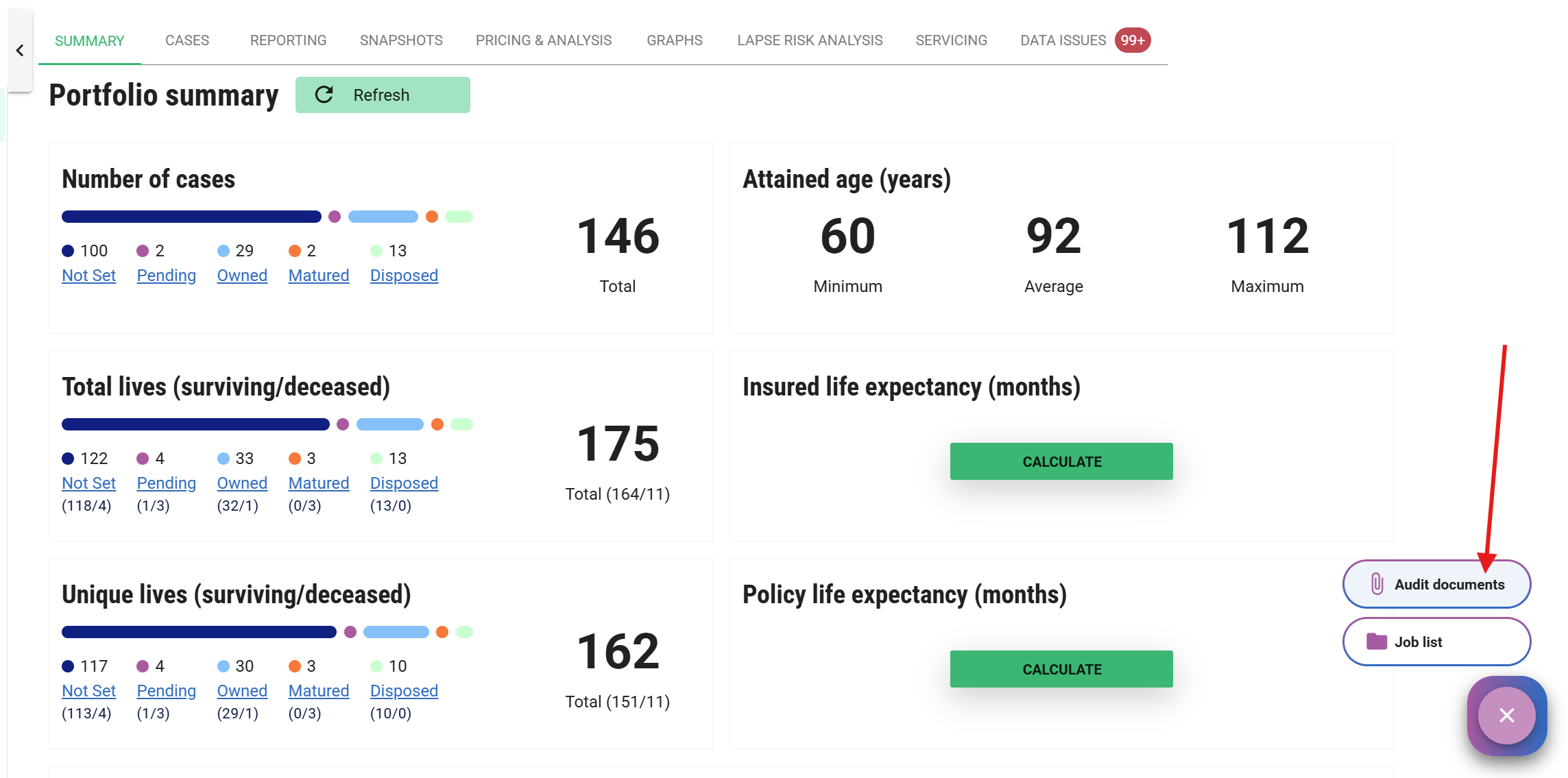
To create an audit, navigate to the Portfolio Details screen. Click the floating action button (purple) in the bottom right and select Audit Documents.
- Audit in Progress: If an audit is already running, you will be taken directly to it (only one audit can run per portfolio at a time).
- New Audit: If no audit is active, you will see a summary screen showing the total case count and how many meet the requirements for AI mining.
Prerequisites for mining
- Policy Form: The case must have an unredacted PDF Policy Form that is not password-protected.
- File Size: The Policy Form must be under 50MB
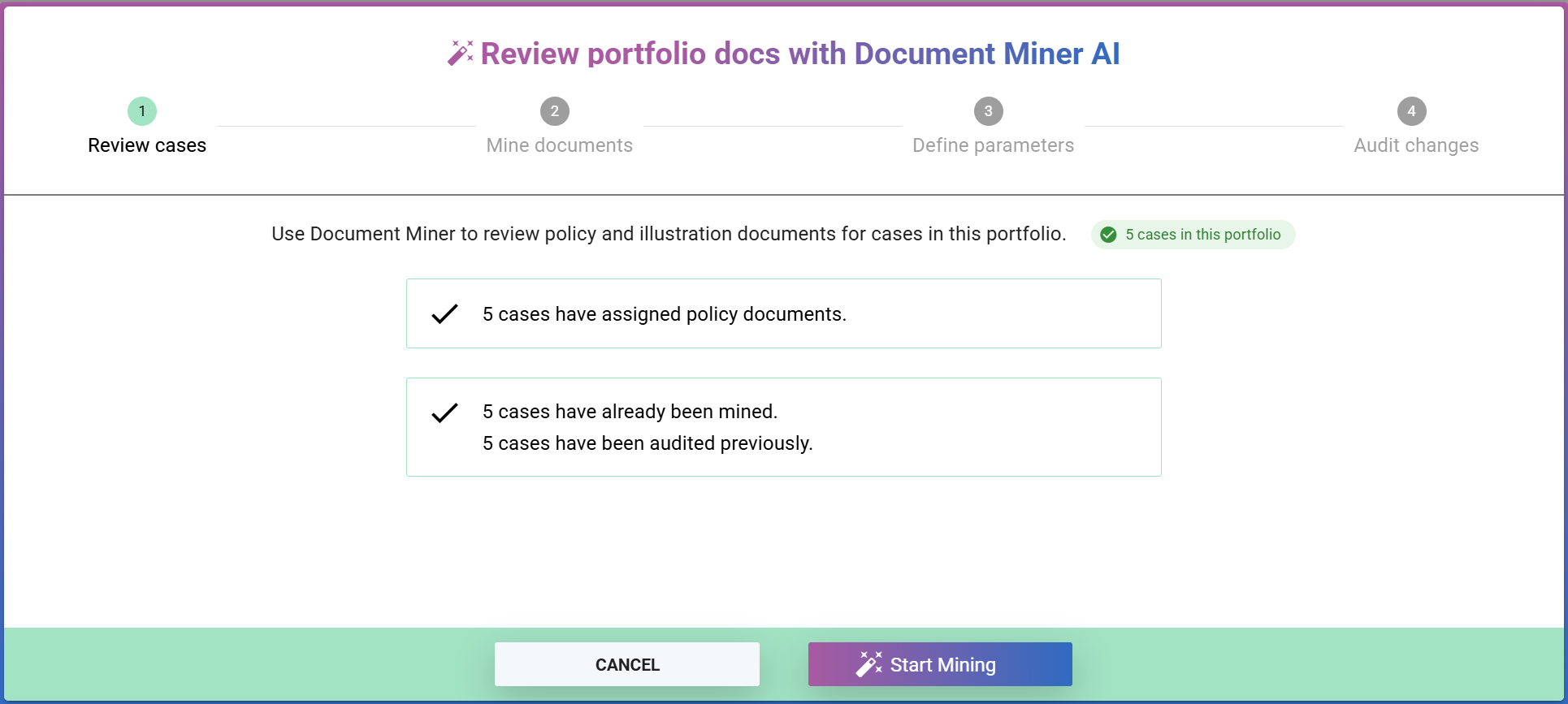
Illustrations: If present, the most recent Illustration form will also be mined (provided the combined size of both documents is within the limit). The system identifies illustrations based on their Document Type, or indicative document type assigned to the document.
Smart analysis
If the documents haven't changed since they were last mined, ClariNet will skip the AI analysis and instantly re-run the comparison against the latest Case values. This significantly speeds up the audit process.
Running the audit
Once you click Start Mining, the processing begins:
- Small Portfolios (under 150 cases): These are processed in real-time, and you will see a live count of cases as they are completed.
- Large Portfolios (150+ cases): These are handled via a batch processing system. While you won't see a live breakdown, the system is working efficiently in the background.
In both scenarios, you will receive an email notification once the audit is complete. Depending on the size of the portfolio, this may take anywhere from a few minutes to several hours. You are free to navigate away from the screen and continue with other work while the audit runs.
Notifications
To be notified about the completion of Portfolio audits you didn’t start yourself, you can subscribe to audit completed notifications under Users > My notifications > Portfolios > Audit Generation Completed.
The person who started the audit will always receive an email notification when the audit completes.
Defining audit parameters
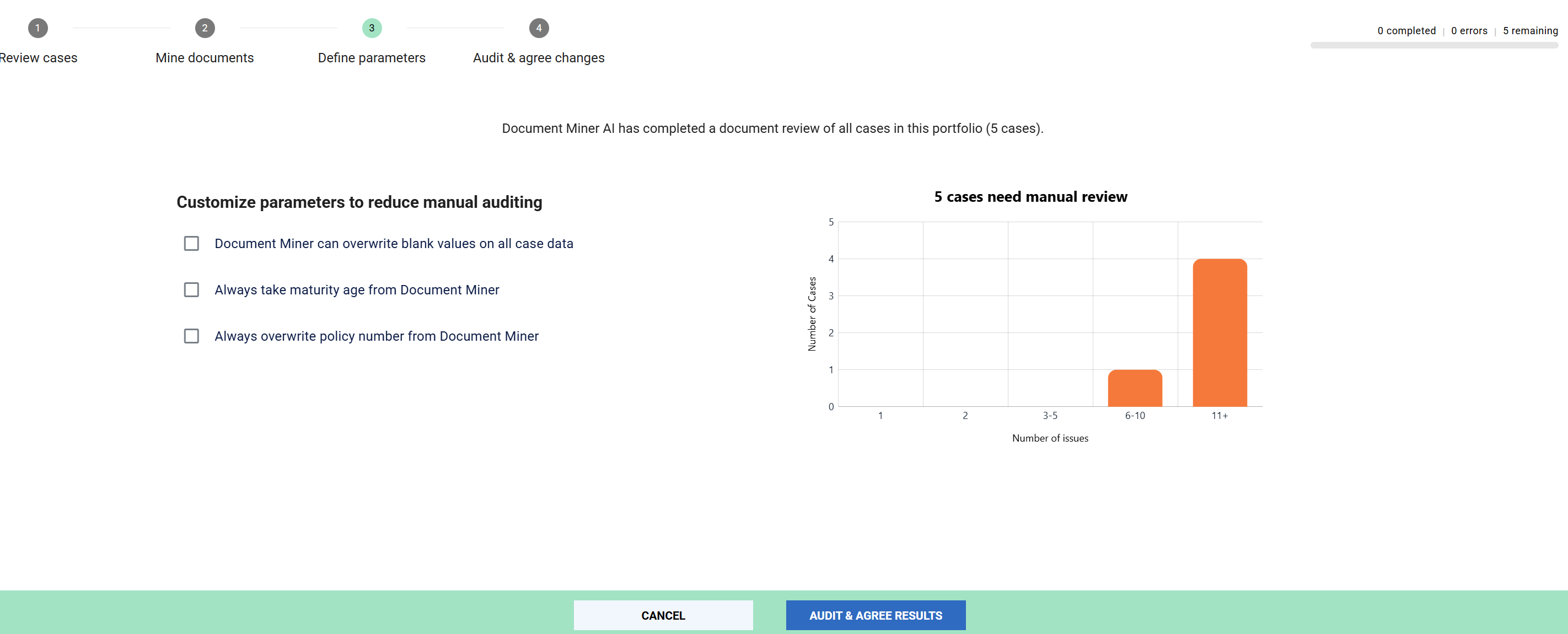
Once the mining is complete, you will proceed to the Define Parameters screen. This view provides a high-level summary of the findings, including a progress bar of identified issues and a histogram showing how those issues are distributed across your portfolio.
Automated review rules
To handle large portfolios efficiently, you can apply Automated Review Rules. These allow the system to categorize certain discrepancies as "solved" based on your business logic, reducing the number of cases that require manual intervention.
- Overwrite blank values: If a field is currently empty in a Case but a value was successfully mined from the document, the system will automatically propose using the mined value.
- Always take maturity age: The system will automatically prioritize the mined Maturity Age as the "source of truth," even if it differs from the current Case value.
- Always overwrite policy number: The system will automatically assume the mined policy number is the correct version.
Even if you prefer to manually review every single change, setting these rules is still highly beneficial. Instead of making the change automatically, the system will use these rules to pre-select the preferred value on the review screen. This saves you hundreds of clicks by setting the "suggested" path while still leaving you in full control of the final "Agree" button.
As you toggle these options, the system recomputes in real-time to show you exactly how many manual reviews remain.
Selecting these options does not commit changes to your cases yet. You are simply categorizing which issues require a human eye and which can be handled automatically. You will have a final opportunity to spot-check these automated results before any data is permanently updated in ClariNet.
Audit & agree changes
This is the final stage of the process where you review the audit findings and apply corrections. The interface is designed to let you work through the portfolio in a way that best suits your current workload.
The audit sidebar
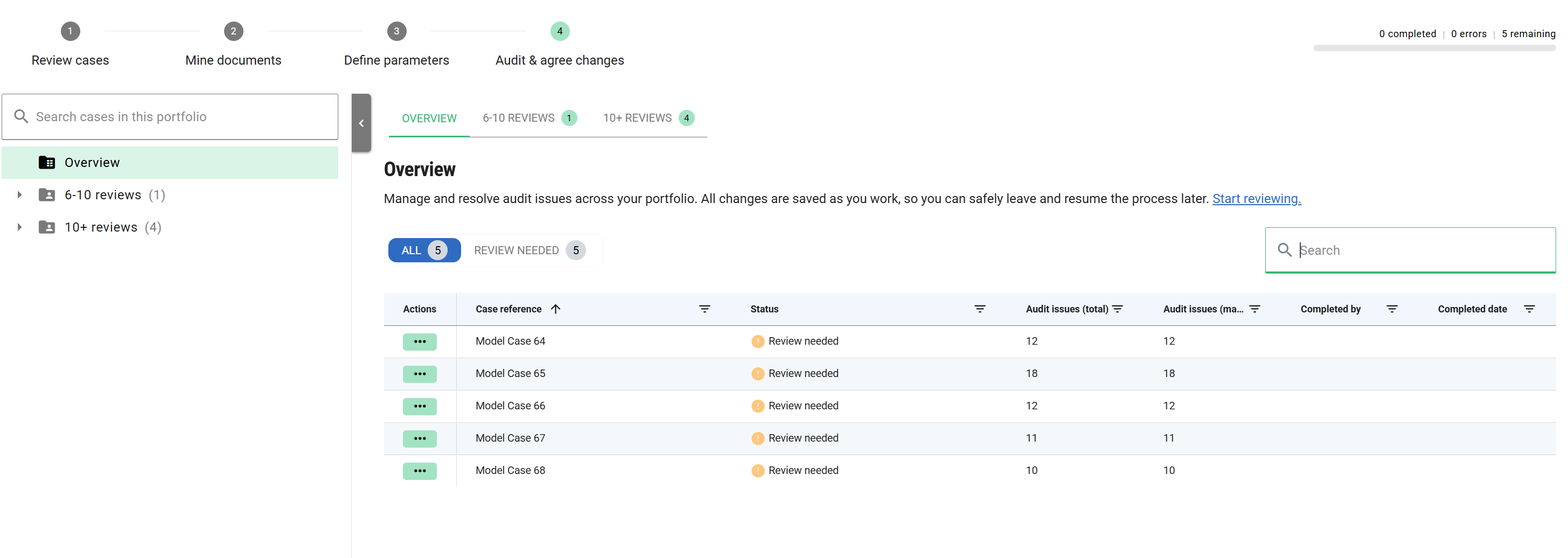
The sidebar on the left acts as your navigation hub. You can search for specific cases or browse through the different categories:
- Manual Review: Cases with discrepancies that require human intervention, grouped by the number of issues they have.
- Automated: Cases where your pre-defined parameters have already proposed a fix.
- Errors/Ineligible: Cases that couldn't be mined (e.g., missing or protected documents).
- Locked Cases: Cases that can’t currently be changed, because another user holds the lock for them.
Targeted workflow
For cases requiring manual review, the sidebar groups them by the number of issues found. This allows you to prioritize your effort:
- High-Impact: Target cases with multiple discrepancies first.
- Quick Wins: Work through cases with only one or two issues to clear volume quickly.
Reviewing a Case
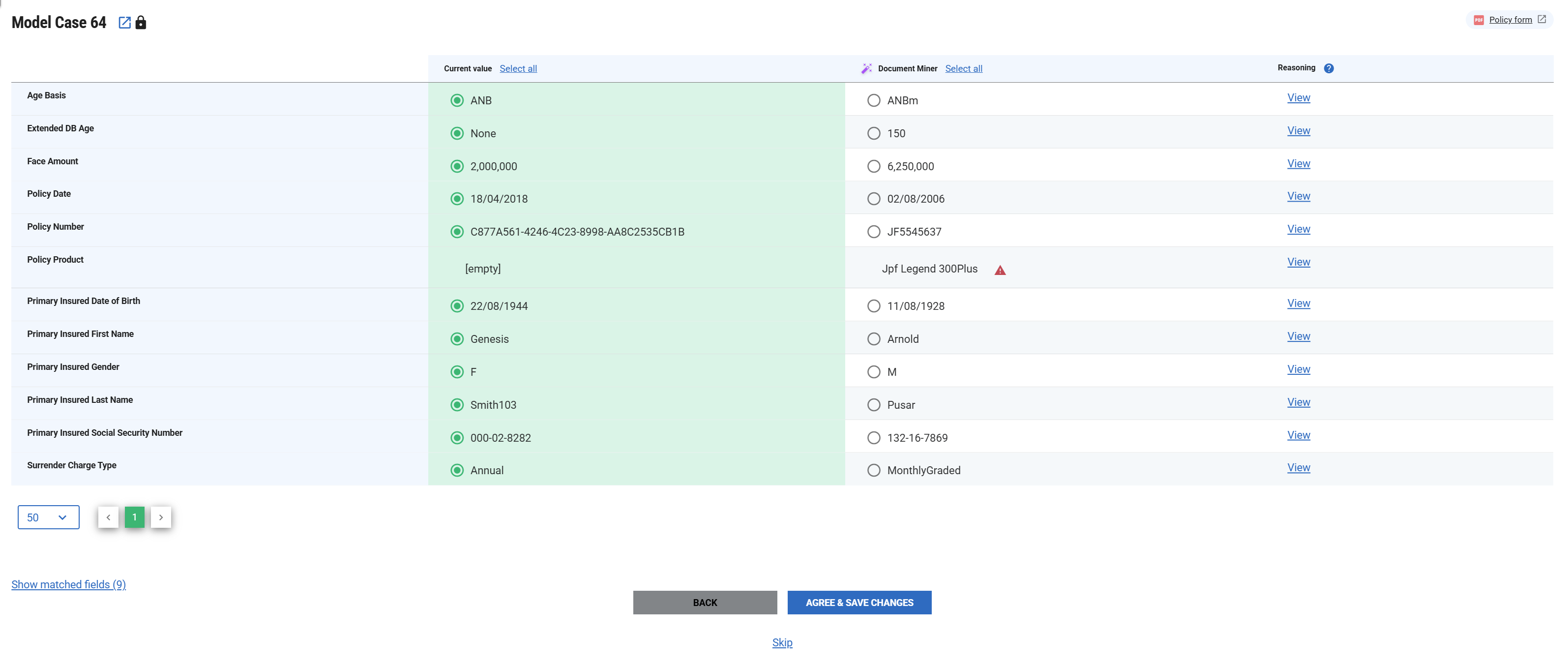
Selecting a case from the sidebar or the Overview tab loads its specific audit findings. This view allows for a side-by-side comparison between existing Case data and the AI-mined results.
- Automatic Locking: As soon as you open a case, ClariNet automatically acquires a Case Lock. This ensures you are viewing the most up-to-date data and prevents other users from making conflicting changes while your review is in progress.
- Reference Documents: If you need to verify a value manually, links to the Policy Form and Illustration are available in the top right. You can also click the "Open Tab" icon next to the Case Reference to open the full Case record in a new browser tab.
- AI Reasoning: If you are unsure why the AI suggested a specific value, click "View" in the reasoning column. The system will provide an explanation of how and where it found that information in the documents.
- Focus on Discrepancies: To reduce visual noise, fields where the AI and Case already agree are hidden by default. You can toggle "Show matched fields" if you wish to see the full comparison.
- Pre-selection Logic: The initial selection (Case vs. AI) is driven by the Audit Parameters you defined in the previous step. For example, if you chose to "prefer mined values over blanks," those AI suggestions will already be pre-selected for your approval.
- Agreeing Changes: Select the preferred value for each discrepancy. If you don't select any AI-mined values, the existing Case data remains unchanged.
- Skipping vs. Completing: If you aren't ready to finalize a case, click Skip to return to it later. Once you are satisfied, click AGREE & SAVE CHANGES to commit the changes to the Case, if there are any.
Overriding mined values
If you disagree with both the current and mined values, you can manually override the field data.
Click the Override link next to the relevant field:
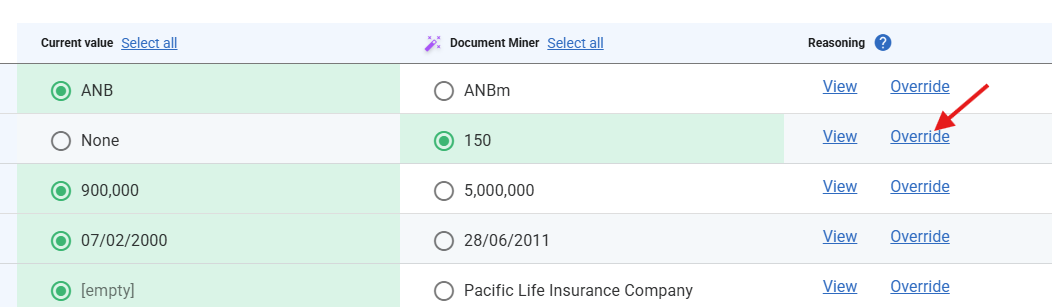
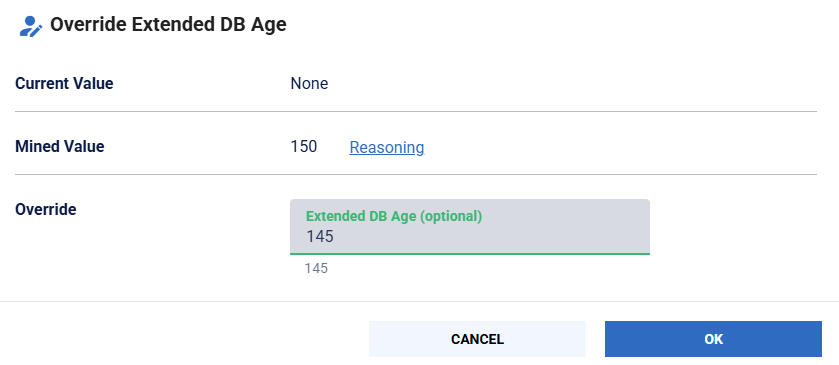
This opens a dialog where you can enter the correct value. Once entered, select the newly overridden value. It will be permanently saved to the policy when you click Agree & Save Changes at the bottom of the page.
Tracking progress
The progress bar in the top right provides a real-time visualization of your completion status. As you work through the audit issues, your progress is saved each time you agree changes on a case, allowing you to tackle large audits over multiple sessions.
Audit job list
The Job List serves as a central dashboard for audits across all Portfolios. Because large audits are processed in the background, this screen allows you to track progress, jump back into active reviews, or manage historical results.
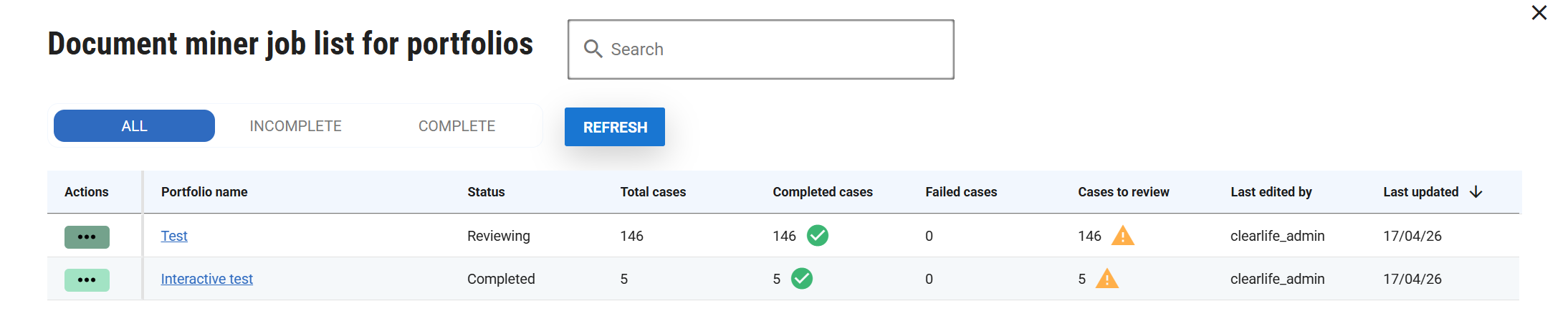
Each audit displays its current stage in the pipeline:
- Generating: The AI is currently mining documents.
- Reviewing: AI mining is finished, and the audit is awaiting manual or automated review.
- Completed: All cases have been reviewed and finalized.
Resuming Work
For large portfolios, audits are designed to be completed over multiple sessions. The Job List provides a quick snapshot of how many cases have been reviewed versus the total number of issues identified. You can click any active job to resume exactly where you left off.
Managing Audits
If you need to clear an old audit or restart the process:
- Use the three-dot action menu on the right side of the table to Delete an audit.
- Deleting an audit is permanent and will remove all current progress for that specific run.
Access Requirements
Portfolio Data Audit is a powerful tool that allows you to quickly traverse many cases, altering Policy and Insured details to match AI’s interpretation of the Policy Form and Illustration documents associated with a Case.
To use Portfolio Data Audit, the Portfolio Data Audit permission is required, which is listed under Special on the User admin page permissions tab. Selecting this permission will also grant access to the Policy Miner permission if a user does not already have it.